Monday, 7 June 2021

Pwd Command in Linux Linux for Beginners 2021,

Pwd Command in Linux | Linux for Beginners 2021

What is pwd?


‘pwd‘ stands for ‘Print Working Directory‘. As the name states, command ‘pwd‘ prints the current working directory or simply the directory user is, at present. It prints the current directory name with the complete path starting from root (/). This command is built in shell command and is available on most of the shell – bash, Bourne shell, ksh,zsh, etc.

Basic syntax of pwd:


# pwd [OPTION]


Options used with pwd

 Options                Description

 -L (logical)            Use PWD from environment, even if it contains symbolic links

 -P (physical)       Avoid all symbolic links

 –help    Display this help and exit

 –version              Output version information and exit


If both ‘-L‘ and ‘-P‘ options are used, option ‘L‘ is taken into priority. If no option is specified at the prompt, pwd will avoid all symlinks, i.e., take option ‘-P‘ into account.

computer s


Linux for Beginners 2021,

linux command line tutorial for beginners ,

 linux terminal linux commands for beginners ,

 linux tutorial for beginners  ,

 pwd command in git bash,

 pwd command in hindi,

 pwd command in linux ,

 pwd command in linux in hindi,

 pwd command in linux with examples,

 pwd command in python,               

 pwd command in Ubuntu,

pwd command in unix,

 pwd command in windows  terminal,


Sunday, 6 June 2021

Ls Command in Linux Explained | Linux for Beginners 2021

Ls Command in Linux Explained | Linux for Beginners 2021

One amazing feature of the Linux operating system is the Command Line Interface (CLI) which allows users to interact with their computer from a shel


l. The Linux shell is a REPL (Read, Evaluate, Print, Loop) environment where users can enter a command and the shell runs it and returns a result.

The ls command is one of the many Linux commands that allow a user to list files or directories from the CLI.

In this video lecture, we'll go in depth on the ls command and some of the most important parameters and arguments you'll need day-to-day.

The Linux ls Command

The ls command is used to list files or directories in Linux and other Unix-based operating systems.

Just like you navigate in your File explorer or Finder with a GUI, the ls command allows you to list all files or directories in the current directory by default, and further interact with them via the command line.

Launch your terminal and type ls to see this in action:

List files including hidden files

Type the ls -a command to list files or directories including hidden files or directories. In Linux, anything that begins with a . is considered a hidden file:

List files in long format including hidden files

Type the ls -l -a or ls -a -l or ls -la or ls -al command to list files or directories in a table format with extra information including hidden files or directories:

List files in long format

Type the ls -l command to list the contents of the directory in a table format with columns including:

    content permissions

    number of links to the content

    owner of the content

    group owner of the content

    size of the content in bytes

    last modified date / time of the content

    file or directory name

List files in long format with readable file sizes

Type the ls -lh command to list the files or directories in the same table format above, but with another column representing the size of each file/directory:

Note that sizes are listed in bytes (B), megabytes (MB), gigabytes (GB), or terabytes (TB) when the file or directory's size is larger than 1024 bytes.

List files with their sizes

Type the ls -s command (the s is lowercase) to list files or directories with their sizes:

List files and sort by file size

Type the ls -S (the S is uppercase) command to list files or directories and sort by date or time in descending order (biggest to smallest).

You can also add a -r flag to reverse the sorting order like so: ls -Sr:

List files and sort by date and time

Type the ls -t command to list files or directories and sort by last modified date and time in descending order (biggest to smallest).

You can also add a -r flag to reverse the sorting order like so: ls -tr:

Conclusion

There are tons of other commands and combinations you can explore to list out files and directories based on your needs. One thing to remember is the ability to combine multiple commands together at once.

Imagine you want to list a file in long format, including hidden files, and sort by file size. The command would be ls -alS, which is a combination of ls -l, ls -a, and ls -S.

If you forget any command or are unsure about what to do, you can run ls --help or man ls which will display a manual with all possible options for the ls command:

ls - l command in linux,

ls command in linux,

ls command in linux explained | Linux for Beginners 2021,

ls command in linux full form,

ls command in linux gfg,

ls command in linux in hindi,

ls command in linux is used for,

ls command in linux javatpoint,

ls command in linux manual,

ls command in linux not found,

ls command in linux not working,

ls command in linux permissions,

ls command in linux syntax,

ls command in linux with examples,

ls command in linux with options,

man ls command in linux,

use of ls command in linux,


Tuesday, 1 June 2021

What is Linux shell Linux for Beginners 2021

what is linux shell | Linux for Beginners 2021

A Shell is a user interface to access the operating system services. It is a command language interpreter and execute commands when from input devices such as keyboard or even from file. In the term of operating system the shell can either use GUI (Graphical User Interface ) or CLI (Command Line Interface).

 Command Line Shell is called Terminal in Linux and MacOS and Command Prompt in Windows

Graphical Shell means for manipulate programs based on Graphical User Interface (GUI) by allowing for operations such as Opening , Closing, Moving , Resizing widows as well as switching focus between windows.

As name is shows it is the outer most layer around the Operating system Kernel.

Kernel is the computer program that is the core of the computer operating system. The complete control over the everything in system.


Kernel manages the following resources of the Linux system i.e.

File Management, process Management, I/O Management, Memory Management,Device Management & etc.

There is a several shells for Linux such as TCSH, KSH, GSH, ZSH and one of the more comman one is BASH ( Bourne Again Shell)

So each Shell dows a same job where it understand different commands and provide different build-in functions.

what is linux shell,

what is linux shell scripting,

what is linux shell programming,

what is my linux shell,

what is the best linux shell,

what is the default linux shell,

what is linux shell scripting used for,

what is bash in linux shell,

what is regular expression in linux shell,

what is meant by linux shell,


linux shell windows 10,

linux shell scripting tutorial,

linux shell scripting,

linux shell,


What Is Linux Terminal CLI and explanation about Prompt | Linux for Beginn...

In this video lecture I am talking about Terminal and it prompt

In short, if the screen shows a dollar sign ($) or hash (#) on the left of the blinking cursor, you are in a command-line environment.

$, #, % symbols indicate the user account type you are logged in to.

  • Dollar sign ($) means you are a normal user.
  • hash (#) means you are the system administrator (root).
  • In the C shell, the prompt ends with a percentage sign (%).
  • Tilde (~) sign means home directory that is the default directory when you first logging in

There are differences on prompts in different Unix or GNU/Linux distributions because of their default settings.

 For example, the prompt of Debian/Ubuntu is guest@linux:~$,

the one of Fedora/CentOS/RedHat is [guest@linux ~]$ and the one of SuSE Linux/OpenSUSE is guest@linux:~>.

 In general, the prompt usually show the login user name, machine hostname, and current working directory and ended with a dollar ($), percentage (%), or hash (#) sign.

guest@linux:~$

  • guest - username: the user account you are logged in to.
  • linux - machine hostname: the machine you are operating.
  • ~ - current working directory: the directory you are in. Tilde (~) means home directory, i.e. the default directory when first logging in.

Lets do some practical-


Terminal windows and text consoles

To launch a text console in , click on the Terminal icon. You can find this by clicking on the dash iconin the top left corner of your screen, and typing 'terminal' in the search box, like this:Clicking on the Terminal icon will start a new terminal.

 The another way to open Terminal ,with shortcut is press Ctrl+Shift+T.

You will see some text that looks like this in the graphical terminal window or the plain text console  :Kali@Kali:~$

The text at the start of the line is called the “prompt” and its purpose is to prompt you to enter some commands.

 Note that the exact form of the prompt may vary depending on the names of your account and the machine.

The prompt can be changed but the default prompts on Linux have these components

:Kali The currently logged in user

@Separator KaliThe name of your computer

:Separator~The directory your session is “in”, also known as the “current working directory”. “~” is shell short hand for “your home directory”.

$Final separator –The Account type


Logging out

Once we are finished with a terminal or a terminal window we need to quit. We will illustrate three ways to do this.

Close the window In the graphical environment the terminal window is just another window. At its top right corner are the three buttons for minimising, maximising and closing. If you click in the [×] button the window is closed and the session cleanly ended.

The exit command In either a terminal window or a text console you can issue the command “exit”; this will end the session. In the graphical environment ending the session running in a window closes the window too. In a text console the console is typically cleared and a fresh login prompt presented.

[Ctrl]+[D]Recall that “[Ctrl]+[D]” means to press down the [Ctrl] key at the same time as the [D] key. In practice we press the [Ctrl] key down, press and release the [D] key, and then release the [Ctrl] key.On a Unix system [Ctrl]+[D] means “end of input”. Here it signals to the shell that we have no more input forit so it might as well quit. And quit it does


What is Desktop Environment in Linux | Linux for Beginners 2021


A desktop environment is the bundle of components that provide you common graphical user interface (GUI) elements such as icons, toolbars, wallpapers, and desktop widgets. Thanks to the desktop environment, you can use Linux graphically using your mouse and keyboard like you do in other operating systems like Windows and macOS. Desktop Environment does exactly this. It is a graphical interface that presents to the User, the bare kernel in a simplified way. Thus, a Desktop Environment presents all the basic functionalities of a Kernel to the user in an elegant and presentable way.

There are several desktop environments and these desktop environments determines what your Linux system looks like and how you interact with it.

Most of the desktop environments have their own set of integrated applications and utilities so that users get a uniform feel while using the OS. So, you get a file explorer, desktop search, menu of applications, wallpaper and screensaver utilities, text editors and more.

Without a desktop environment, your Linux system will just have a terminal like utility and you’ll have to interact it using commands only.

1. Xfce

Xfce is an Open Source desktop environment for Unix-like systems developed in C. Being fast and lightweight, it is less expected to trouble CPU and Memory even on older desktops.

It is composed of separately structured parts that combine to make up for a complete desktop environment.

Some of the components of Xfce include:

  • Xfwm : Compositing window manager.
  • Thunar : File manager, which resembles Nautilus but is more efficient and hence fast.
  • Orage: Default calendar application for Xfce.
  • Mousepad: File editor which forked initially from Leafpad, but now being actively developed and maintained from scratch.
  • Parole: Media player based on Gstreamer framework made for Xfce.
  • Xfburn: CD/DVD burner for Xfce.


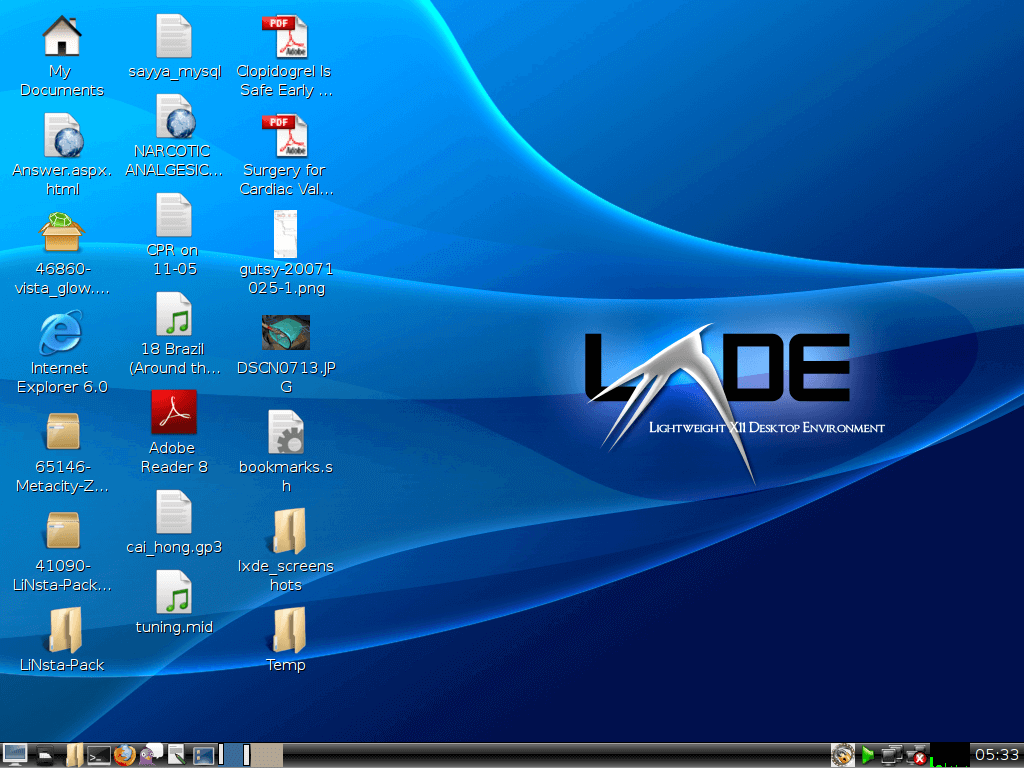
2. LXDE

LXDE stands for Lightweight X11 desktop environment which is yet another popular desktop environment for Unix-like systems, was developed using C (GTK+) and C++ (Qt).

The biggest advantage of having it as your choice for desktop environment is its low memory consumption which is lower than that of the most popular desktop environments i.e. GNOME, KDE, and Xfce. It includes both GPL and LGPL licensed codes.

Components that makeup LXDE include:

  • LXDM – Display Manager.
  • LXMusic – Default Music Player for XMMS2.
  • Leafpad – Default text editor for LXDE.
  • Openbox – Window Manager.
  • LXTask – Default Task Manager.
  • PC Man File Manager – Default File Manager and Desktop Metaphor provider.

LXDE is the default desktop environment for many distributions including Lubuntu, Knoppix, LXLE Linux, Artix, and Peppermint Linux OS – among others.


3. GNOME 3

GNOME is an acronym for GNU Network Object Model and is one desktop environment composed entirely of free and open-source tools. Written in C, C++, Python, Vala, and Javascript, GNOME is part of the GNOME project which is composed of both volunteers and paid contributors largest being Red Hat.

GNOME is currently under active development with the latest stable release being GNOME 40. GNOME runs on X Windows System and also on Wayland since GNOME 3.10.

GNOME 40 replaced a lot of things starting from the default window manager which is now being changed to Metacity instead of Mutter, task switching was attributed to a special area called Overview, GNOME core applications are also redesigned to provide a better user experience.

Components of GNOME include:

  • Metacity – Default Window manager.
  • Nautilus – Default file Manager.
  • gedit – Default text editor.
  • Eye of GNOME – Default Image Viewer.
  • GNOME Videos – Default Video Player.
  • Epiphany – Web Browser.

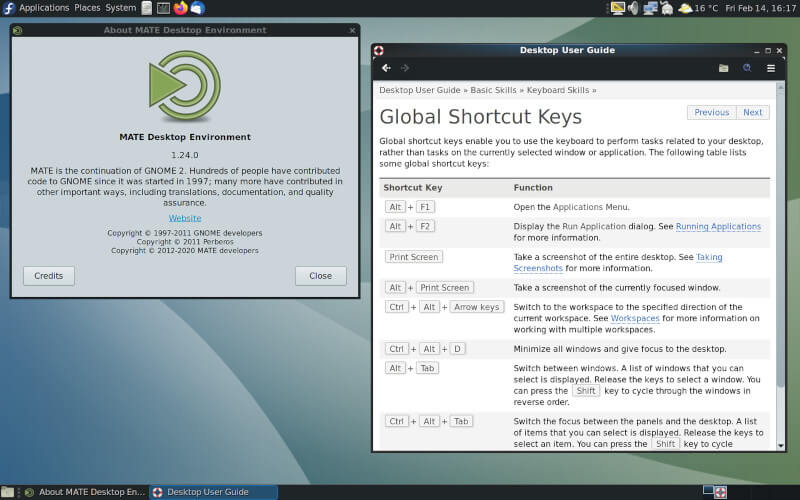
4. MATE

MATE is another desktop environment for Unix-like systems. It finds its origin from the unmaintained code-base of GNOME 2. It is developed in C, C++, and Python and licensed under multiple licenses with some parts of code under GNU GPL, while other part being under LGPL.

‘MATE‘ name came into the picture to differentiate from GNOME 3 which is yet another desktop environment. It consists of both GNOME originated applications which were earlier part of GNOME 2 and other applications which have been developed from scratch.

Components that makeup MATE desktop environment are:

  • Caja – default file manager.
  • Pluma – default text editor.
  • Marco – window manager.
  • Atril – Document viewer.
  • Eye of MATE – An image viewer.

Since its release, it has been the default desktop environment for Linux Mint, Sabayon Linux, Fedora, etc. Apart from this, it is available in several repositories including Ubuntu, Arch, Debian, Gentoo, PC Linux OS, etc. Apart from all this, Ubuntu MATE was granted the original Ubuntu flavor status.

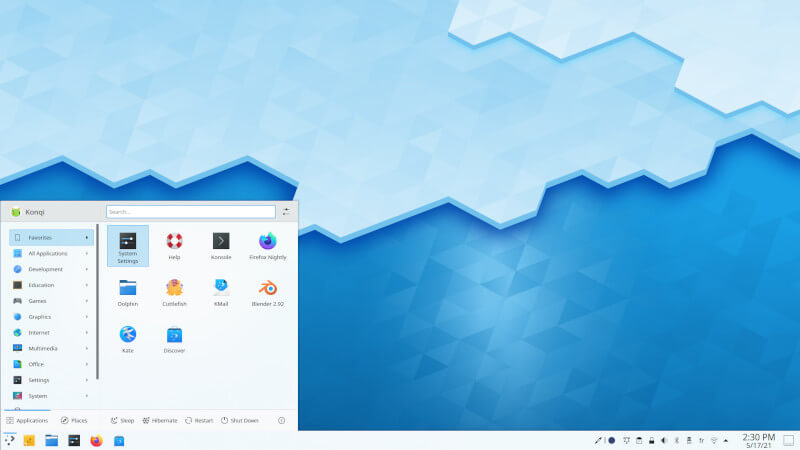
5. KDE Plasma 5

KDE Plasma 5 is the fifth generation of KDE desktop environment created for Linux systems. It has been migrated to QML since its development, using OpenGL for hardware acceleration leading to low CPU utilization and better performance even on cheap systems.

Most parts of its code have been released under GNU LGPL. Plasma 5 utilizes X Window System with support for Wayland still to come. It has successfully replaced Plasma 4 on many Linux distributions including Fedora, Kubuntu, and openSUSE Tumbleweed.

Plasma 5 provides improved support for HiDPI, along with migration to Qt5 which takes intensive graphics rendering to GPU making the CPU faster. Apart from this Plasma 5 includes a new default theme called Breeze.

Components that makeup KDE Plasma 5 include:

  • Kwin – Default Window manager.
  • Dolphin – Default File Manager.
  • Kwrite/KATE – Default text editor.
  • Greenview – Default Image viewer.
  • Dragon Player – Default Video Player.

KDE community also introduced Plasma mobile as a Plasma variant for smartphones. Plasma mobile runs on Wayland and is compatible with Ubuntu touch and eventually Android applications. Its latest interface was released in July 2015, with a working prototype for Nexus 5.

KDE Plasma Desktop


  • 6. Cinnamon: - Cinnamon strives to provide a traditional user experience. Cinnamon is a fork of GNOME 3.


  • 7. Enlightenment :- The Enlightenment desktop shell provides an efficient window manager based on the Enlightenment Foundation Libraries along with other essential desktop components like a file manager, desktop icons and widgets. It supports themes, while still being capable of performing on older hardware or embedded devices.


  • 8. Deepin: - Deepin desktop interface and apps feature an intuitive and elegant design. Moving around, sharing and searching etc. has become simply a joyful experience.


9. LXQT:- LXQt is the Qt port and the upcoming version of LXDE, the Lightweight Desktop Environment. It is the product of the merge between the LXDE-Qt and the Razor-qt projects: A lightweight, modular, blazing-fast and user-friendly desktop environment.

10. Pantheon – Elementary OS :- Pantheon is the default desktop environment originally created for the elementary OS distribution. It is written from scratch using Vala and the GTK3 toolkit. With regards to usability and appearance, the desktop has some similarities with GNOME Shell and macOS.

11. Common Desktop Environment :- The Common Desktop Environment is a desktop environment for Unix and OpenVMS, based on the Motif widget toolkit. It was part of the UNIX98 Workstation Product Standard, and was long the "classic" Unix desktop associated with commercial Unix workstations. Despite being a legacy environment, it is still kept alive with support for Linux systems as well.


budgie desktop environment,

cinnamon desktop environment,

deepin desktop environment,

desktop environment,

desktop environment android,

desktop environment arch linux,

desktop environment comparison,

desktop environment for fedora,

desktop environment for kali linux,

desktop environment for Ubuntu,

desktop environment for windows 10,

desktop environment in linux,

desktop environment kali linux,

desktop environment linux,

desktop environment linux terbaik,

desktop environment manjaro,

desktop environment termux,

desktop environment Ubuntu,

desktop environment vs window manager,

desktop environment windows 10,

desktop environment wsl,

gnome desktop environment,

kde desktop environment in linux,

linux desktop environments 2021,

mate desktop environment,

what is a linux desktop environment mcq,


Saturday, 29 May 2021

What is Linux and its several different pieces Linux for Beginners 2021


What is Linux?

Just like Windows, iOS, and Mac OS, Linux is an operating system. In fact, one of the most popular platforms on the planet, Android, is powered by the Linux operating system. An operating system is software that manages all of the hardware resources associated with your desktop or laptop. To put it simply, the operating system manages the communication between your software and your hardware. Without the operating system (OS), the software wouldn?t function.

The Linux operating system comprises several different pieces:

  1. Bootloader –  The software that manages the boot process of your computer. For most users, this will simply be a splash screen that pops up and eventually goes away to boot into the operating system.
  2. Kernel – This is the one piece of the whole that is actually called ?Linux?. The kernel is the core of the system and manages the CPU, memory, and peripheral devices. The kernel is the lowest level of the OS.
  3. Init system
  4. – This is a sub-system that bootstraps the user space and is charged with controlling daemons. One of the most widely used init systems is systemd? which also happens to be one of the most controversial. It is the init system that manages the boot process, once the initial booting is handed over from the bootloader (i.e., GRUB or GRand Unified Bootloader).
  5. Daemons – These are background services (printing, sound, scheduling, etc.) that either start up during boot or after you log into the desktop.
  6. Graphical server – This is the sub-system that displays the graphics on your monitor. It is commonly referred to as the X server or just X.
  7. Desktop environment – This is the piece that the users actually interact with. There are many desktop environments to choose from (GNOME, Cinnamon, Mate, Pantheon, Enlightenment, KDE, Xfce, etc.). Each desktop environment includes built-in applications (such as file managers, configuration tools, web browsers, and games).
  8. Applications – Desktop environments do not offer the full array of apps. Just like Windows and macOS, Linux offers thousands upon thousands of high-quality software titles that can be easily found and installed. Most modern Linux distributions (more on this below) include App Store-like tools that centralize and simplify application installation. For example, Ubuntu Linux has the Ubuntu Software Center (a rebrand of GNOME Software? Figure 1) which allows you to quickly search among the thousands of apps and install them from one centralized location.

features of linux operating system,

is linux free,

linux command,

linux download,

linux vs windows,

what is linux,

what is linux and Ubuntu,

what is linux distro,

what is linux in hindi,

what is linux kernel,

what is linux operating system,

what is linux operating system in hindi,

what is linux os,

what is linux programming,

what is linux server,

what is linux used for,

what is unix,

what is windows,

Bootloader,

Kernel,

Init system,

Daemons,

Graphical server,

Desktop ,

Applications,