Hiding your face when recording video
Facial recognition algorithms are already at full strength, and identifying a person from a photo or video is not too difficult. But there is a way to hide from prying eyes and keep yourself safe. The App Store has an app that automatically hides your face in photos and videos while you're recording. You can also choose to hide your whole body at once. Anonymous Camera is the name of the app. In addition to hiding your face, the app can also remove all metadata from a photo or video. There are several types of face hiding, from the usual "blurring", to putting a circle of a single color on the face area. Full body hiding is available on IPhone XS and higher, it is not supported on previous models.Online Platform for tutorials on Computer hardware Repair , Networking , softwares , Programming languages , ethical hacking , Accounts tally GST and lots more................for Video tutorials visit:- www.youtube.com/c/gatewaysolutions
Monday, 9 June 2025
How to make a blank screen on iPhone
Sometimes you want to put a beautiful wallpaper on the iPhone home screen and not have any apps, folders or widgets overlap it. It is also sometimes useful to hide absolutely all applications from the home screen of the device and make a blank iOS screen visible. To make a blank screen you need:
Hold the screen blank until the icons start wiggling, then move the icon of one of the apps to the blank screen
Then by pressing the three dots at the bottom, turn off all other screens
Remove the application icon you moved earlier from the home screen and remove the other icons from the panel below
If you remove all apps from the home screen, new downloads will still appear on the screen that has been cleared of icons. To avoid this: go to settings, select "Home screen" and check "App Library only".
Saturday, 7 June 2025
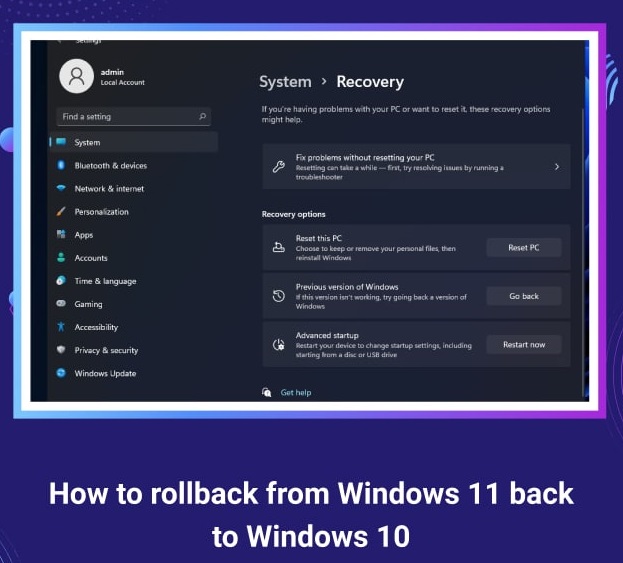
How to rollback from Windows 11 back to Windows 10
Windows 11 is a great operating system, but some users may want to roll back to a previous version of Windows after installing it. After all, not every PC pulls all its features and decorations, or because of incompatibility with hardware, programs and games. Fortunately, Microsoft has provided an easy way to roll back to Windows 10. Not only is it easy, but it's also quick - the whole procedure takes just a few minutes. Just open "Settings", go to "Windows Update Center" → "Advanced Settings" → "Restore" and click "Back to Windows 10". You may need to select or specify a reason why you decided to go back to the previous OS. If the option to revert to Windows 10 is not available, it means that it has been more than ten days since you installed Windows 11, or you deleted a saved copy of your old operating system to save space.SMART Failure Predicted on Hard Disk
SMART Failure Predicted on Hard Disk
Users may encounter messages such as: SMART Failure Predicted on Hard Disk, SMART Hard Drive detects imminent failure, S.M.A.R.T. Status Bad and others. All of the above messages say that a self-diagnostic S.M.A.R.T. HDD or SSD is telling you that the drive is about to fail. Moreover the message usually suggests to back up and replace the drive. Check CrystalDiskInfo to see if the hard disk drive is working and not error free.Tuesday, 3 June 2025
Distinguishing Dipfake from the Original
Distinguishing Dipfake from the Original A dipfake is a video created using artificial intelligence. In simple terms, a neural network pixel by pixel assembles a video based on ready-made images. To learn how to distinguish dipfake from original video, scanner.deepware.ai was developed. Upload a file or provide a link to it and click SCAN. The service will give you detailed information about the file, including the percentage of DEEPFAKE DETECTED, by which you can judge the veracity of the video.
Mubert Render - free soundtracks for your content
How to find out who picked up your smartphone.
To detect any attempts to break into your smartphone, use the WTMP app :
Download the app from Google Play.
Click on the "gear" icon in the upper right corner and access the camera and view usage data. The program will then take a picture of the person with the front camera every time the smartphone screen turns on.
To view the photo, go into WTMP, turn off tracking and see the report.
Select the desired item for a detailed view.
In addition WTMP records all the actions that the person who takes your smartphone in his hands. From this script it will be quite easy to understand whether he has been practicing it for a long time or not.
Monday, 2 June 2025
Speeding up the USB drive
First, connect the device to your PC. Open Explorer, click on the device and select Properties. Click the Hardware tab, select your device from the list and click Properties. Then click the Change settings button so the Policy tab appears in the window - go to it. In the Deletion Policy section, select Optimal performance, and in the Record Caching Policy section, check the Allow record caching for this device checkbox.Thursday, 29 May 2025
Uninstalling uninstallable programs
There are programs which may still have their files on your computer after uninstalling, but there are also utilities which do not want to uninstall from the hard disk at all. In this case IObit Uninstaller 11 Free will help. It allows you to remove any unwanted software in a single click. In addition, this utility helps to get rid of malicious browser extensions that you might not even know existed.Remove unnecessary objects from the photo without Photoshop
Remove unnecessary objects from the photo without Photoshop
Sometimes there are people, animals or something else that spoil the picture when you take a picture. You can remove such objects without knowledge and Photoshop. Nvidia's InPainting service uses neural networks to retouch your image and replace any part of it. To use it you need:
Go to the link and click "Let's Get Started"
Select an image and click "Next".
Draw extra objects and click "Apply Model".
Wednesday, 28 May 2025
Create the perfect sound background
Few people have their own office where they can work in peace and quiet. Not everyone can tune in in a complete vacuum, though. But whatever the reason you're looking for a way to change the sound scene around you, the simple and free service Noizer can help. Noizer is a free service that allows you to pick up the sounds you like and listen to them in different combinations, adjusting the volume of each in the mix separately. There are 20 different soundtracks in total in Noizer, among which there are sounds of nature, birds and animals, as well as the atmosphere of a cafe, an airplane, a train and white noise. You can listen to individual sounds by mixing them manually, as well as ready-made presets. In addition to the default Productivity, Focus and Relax available, the user is allowed to create and save his own combinations.Tuesday, 27 May 2025
Using the built-in antivirus in Google Chrome.
Go to Settings.
Go down and click "Advanced".
Scroll to the end again and click "Remove malware from computer".
Click the "Find" button.
No progress is displayed during the scan. You have to wait for a notification of completion. The scan itself runs periodically in the background of the browser.Saturday, 24 May 2025
How to remember all your "forgotten" passwords.
How to remember all your "forgotten" passwords. The program WebBrowserPassView will help us. It displays a list of all passwords from all installed browsers in one list, and by sorting by address or login you can quickly find the data you are interested in. To use it, you need:
Go to the link, scroll down and click "Download WebBrowserPassView (In zip file)".
Unpack the archive with the password: «wbpv28821@».
Open the program - the list of all passwords with dates of their creation and change will appear. Click "Ctrl+S" to save the found passwords to the file.