Wednesday, 18 December 2019

11 places for thrifty bookworms to download free e-books


11 places for thrifty bookworms to download free e-books
Looking for free e-books, digital bookworms? We have you covered.

Looking for the next great book to sink your teeth into? Look no further.

As the year rolls on, you may find yourself wanting to set aside time to catch up on reading. We have good news for you, digital bookworms — you can get in a good read without spending a dime. The internet is filled with free e-book resources so you can download new reads and old classics from the comfort of your iPad. 
Here's a list of 11 places where you can find a wealth of free e-books (yes, free e-books!).

The Google eBookstore offers an entire section of free e-books to download.
IMAGE: GOOGLE EBOOKSTORE
In the free section of the Google eBookstore, you'll find a ton of free books from a variety of genres. Look here for bestsellers, favorite classics, and more. Books are available in several formats, and you can also check out ratings and reviews from other users.
With a collection of more than 45,000 free e-books, Project Gutenberg is a volunteer effort to create and share e-books online. No registration or fee is required, and books are available in ePub, Kindle, HTML, and simple text formats.
Never run out of free book download options with Open Library.
IMAGE: OPEN LIBRARY
The Open Library has more than one million free e-books available. This library catalog is an open online project of Internet Archive, and allows users to contribute books. You can easily search by the title, author, and subject.
If you're looking for out-of-print books in different languages and formats, check out this non-profit digital library. The Internet Archive is a great go-to if you want access to historical and academic books.
Searching for a particular educational textbook or business book? BookBoon may have what you're looking for. The site offers more than 1,000 free e-books, it's easy to navigate and best of all, you don't have to register to download them.
With more than 29,000 free e-books at your fingertips, you're bound to find one that interests you here. You have the option to browse by most popular titles, recent reviews, authors, titles, genres, languages, and more. These books are compatible for Kindles, iPads and most e-readers.
A plethora of free book downloads await — everything from self-improvement e-books to poetry downloads.
IMAGE: FREE EBOOKS
From romance to mystery to drama, this website is a good source for all sorts of free e-books. When you're making a selection, you can go through reviews and ratings for each book. If you're looking for a wide variety of books in various categories, check out this site.
Want to listen to books instead? LibriVox is home to thousands of free audiobooks, including classics and out-of-print books.
Thanks to public domain, you can access PDF versions of all the classics you've always wanted to read in PDF Books World's enormous digital library. Literature, plays, poetry, and non-fiction texts are all available for you to download at your leisure. 
10. Feedbooks
If you're looking for free public domain books, try Feedbooks.
IMAGE: FEEDBOOKS
Similar to PDF Books World, Feedbooks allows those that sign up for an account to download a multitude of free e-books that have become accessible via public domain, and therefore cost you nothing to access. Just make sure that when you're on Feedbooks' site you head to the "Public Domain" tab to avoid its collection of "premium" books only available for purchase.
If you're having a hard time finding a good children's book amidst the many free classics available online, you might want to check out the International Digital Children's Library, where you can find award-winning books that range in length and reading levels. There's also a wide selection of languages available, with everything from English to Farsi.

This little tutorial here will show you  " 11 places for thrifty bookworms to download free e-books "
Looking for the next great book to sink your teeth into? Look no further.
Links for Ebooks

Links:- 1.     https://play.google.com/store/search?q=top%20free%20books&c=books

Link2:- http://www.gutenberg.org

Link 3:- https://openlibrary.org

Link4 :- https://archive.org

Link5 :- https://bookboon.com

As the year rolls on, you may find yourself wanting to set aside time to catch up on reading. We have good news for you, digital bookworms — you can get in a good read without spending a dime. The internet is filled with free e-book resources so you can download new reads and old classics from the comfort of your iPad.

Thanks for watching, please like and subscribe
Please comment which videos you want on our channel. By :-
Amrinder Singh Gateway Solutions

 Be sure to check our Website :- www.gatewaysol.com
Please visit our Blog :- www.gatewaysolu.blogspot.com
 Like us on Facebook:- https://www.facebook.com/amrinder.bjp Follow us on Twitter :- https://twitter.com/gatewaysng
And as always THANKS FOR WATCHING.
Disclaimer :- This Video is for only Educational Purpose.  This Chanel / Video is not Promoting Illegal Activities.
डिस्क्लेमर: - यह वीडियो केवल एजुकेशनल पर्पज के लिए है। यह चैनल / वीडियो अवैध गतिविधियों को बढ़ावा नहीं दे रहा है। "
Watch my Videos :-  https://youtu.be/wgBDCAsn5sQ

11 places for thrifty bookworms to download free ebooks1

Monday, 18 November 2019

How to Reset your Forgotten Root Password in Kali Linux 2019.2


How to Reset your Forgotten Root Password in Kali Linux 2019.2

How to Reset your Forgotten Root Password in Kali Linux 2019.2?

Step 1: Restart your Kali Linux, and when your computer boots up to Grub menu, use your downward arrow key to highlight 'Advanced Options for Kali/GNU linux', and then hit Enter key on the keyboard.

Step 2: Highlight 'Recovery Mode', and then Press 'e' key on the keyboard.

Step 3: Now, On the Next Screen, Go to line linux and replace 'ro' with 'rw'. Also, go to the end of the line linux and then hit space key, and then type init=/bin/bash. Press 'f10' key (if you are using laptop, press fn + f10 key) on the keyboard.

Step 4: Type command below to change password

        passwd root

and then hit enter. Type your password, and then hit Enter. Again, Re-type the password, and hit Enter. you will see the message, password updated successfully.

Step 5: Now, use the command below to reboot kali linux.

        reboot -f

and then, hit Enter.

Step 6: Let kali linux restart normally, and when you see login screen, enter new password. You will be able to login with that.


It's done


Thanks for watching, please like and subscribe

How to Reset your Forgotten Root Password in Kali Linux 2019.2

Saturday, 9 November 2019

Command Prompt : Show Saved Wifi Password - Windows 10/8/7/XP

How to Disable Windows 10 Update in Every Way


How to Disable Windows 10 Update in Every Way
"Every time I try to shut down my computer, I was forced to update my Windows 10. But I really don't want to update my operating system because the automatic update might take up the system and network resources. Is there anybody can help me solve this problem and disable Windows 10 update? Thanks in advance."
Whenever you are faced with Windows 10's automatic update notification like:
  • Install updates automatically 
  • Download Updates but choose when to install them
  • Check for updates but let me choose whether to download and install them
What would you do? Here, we have the following solutions.
All solutions to disable Windows 10 update:
PAGE CONTENT:
Solution 1. Disable Windows Update Service
Solution 2. Change the Setting of the Group Policy Editor
Solution 3. Meter Your Network Connection
Solution 4. Change the Way of Windows 10 Updates Using Registry
Tip
Before proceeding with the four solutions to fully stop Windows 10 updates, check your own Windows 10 edition (Home, Professional, Education or Enterprise) by going to Settings -> System -> About so that you can find the most appropriate solution. Besides, the fourth way of trying to control the Windows 10 update by using Registry is somewhat risky, do remember to back up your data and the details will be shown in the extra tips section.
How to Disable Windows 10 Update
Follow the methods below to disable Windows 10 update correctly. 
Solution 1. Disable Windows Update Service
Understand the limitations of this method. While disabling the automatic update service will temporarily halt any Windows 10 cumulative updates, the service will re-enable itself after a certain amount of time. Here are the directions:
1. Press the Windows logo key + R at the same time to invoke the Run box.
2. Type services.msc and press Enter.
invoke run box and type services.msc
3. Scroll down to Windows Update, and double-click it.
find windows update and double-click it
4. In Startup type, select "Disabled". Then click "Apply" and "OK" to save the settings.
disable the windows update service
Do you prefer a one-click solution to disable the Windows automatic update feature? If so, get the versatile toolkit - EaseUS Tool M to help you. With it, you can disable/enable Windows Update, repair hard drives, remove/enable write-protection, and more within seconds.
To disable Windows Update:
Step 1.  DOWNLOAD EaseUS Tool M for free and install it on your computer.
Step 2. Launch EaseUS Tool M and go to "System Update Management".
Step 3. The tool will detect the status of the Windows Update service automatically. If Windows Update is currently enabled, click "Disable" to stop the service.
Disable Windows Update
Step 4. If you want to check whether you have disabled the service automatically, go to "Start" > type "Services" > right-click "Services" and choose "Run as administrator".
Step 5. In the list of services, find and right-click "Windows Update" > "Properties". In the "Service status" section, you should see the service has been stopped.
Check Windows Update Status
Solution 2. Change the Setting of the Group Policy Editor
The Group Policy feature is not available in the Home edition. So, only when you run Windows 10 Professional, Enterprise, or Education, you can use the Group Policy Editor to change the settings to prevent Windows 10 from automatically updating. The group policy editor will notify you of new updates without automatically installing them. 
  • Press the Windows logo key + R then type gpedit.msc and click OK.
  • Go to "Computer Configuration" > "Administrative Templates" > "Windows Components" > "Windows Update".
  • Double-click "Configure Automatic Updates".
  • Select "Disabled" in Configured Automatic Updates on the left, and click Apply and "OK" to disable the Windows automatic update feature.
Note: If you need to update your Windows version later, you can repeat the steps above, then select Enabled to turn on this feature, so that you can continue to download the updates.
Solution 3. Meter Your Network Connection
Understand that this method won't work for Ethernet connections. You can only disable automatic updates by using this method on a Wi-Fi connection. If your computer is connected to WiFi, you can try this to stop Windows 10 automatic updates. 
1. Click the Start button at the bottom left on your desktop, then click the "Settings" app.
2. Click "Network & Internet".
click network and internet to meter your network connection
3. Click WiF in the left pane, then click the name of your Wi-Fi connection.
4. Click to turn on Set as metered connection.
Solution 4. Change the way of Windows 10 Updates Using Registry
Extra Tips: Editing the registry is risky, and it can cause irreversible damage to your installation if you don't do it correctly. It's recommended that you make a full backup of your computer before proceeding. All you need to do is use this free backup software to back up your data in three steps:
Tip
You'd better create the backup file on an external disk or on the cloud in case the local backup gets corrupted or destroyed.
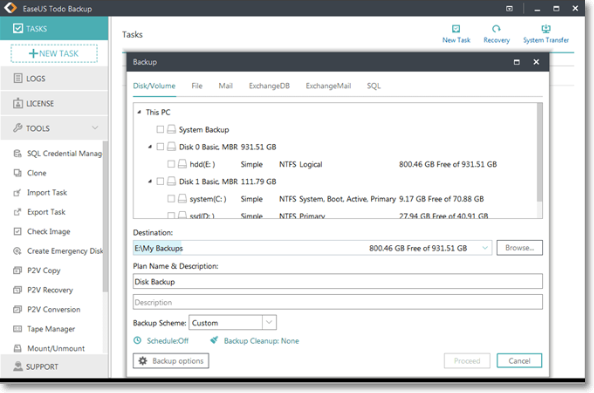
Step 1: Launch EaseUS Todo Backup software and then choose "File Backup", "Disk/partition Backup" or "System Backup" for different backup purpose.
Step 2: Choose the system, disk partition, files or apps that you want to back up. Then select a destination where you want to store the backup file.
Step 3: Click "Proceed" to start the data backup process.
back up data with easeus todo backup
With a backup at hand, now it's safe to customize a Windows 10 update without receiving any forced updates on your computer. Here's how to make the change in Registry:
1. Use the Windows key + R keyboard shortcut to open the Run command.
2. Type regedit, and click OK to open the Registry.
Browse the following path:
HKEY_LOCAL_MACHINE\SOFTWARE\Policies\Microsoft\Windows
3. Right-click the Windows (folder) key, select "New" and then click "Key".
4. Name the new key "WindowsUpdate" and press "Enter".
5. Right-click the newly created key, select "new", and click "Key".
disable windows 10 update in registry
6. Name the new key AU and press Enter.
Inside the newly created key, right-click on the right side, select "New", and click on "DWORD (32-bit) Value".
7. Name the new key AUOptions and press Enter.
Double-click the newly created key and change its value to 2. It's for "Notify for download and notify for install". Click "OK".
8. Close the Registry to complete the task.
Using this value prevents Windows 10 from downloading updates automatically, and you'll get a notification when new updates are available. By this way, you can avoid any auto Windows 10 update effectively.
That's how you could make an attempt to disable Windows 10 update in every way. Each method has been proved to work as long as you wish to turn off all the automatic updates in Windows 10.